

“I just got a new SSD, and connected it with the SATA and power cables, but it’s not showing up in Windows. Any ideas on how to fix it, and why is my SSD not showing up? What could I be doing wrong?”
__A Question from Reddit


In some cases, your SSD drive is not showing up in some places while it appears in others. These situations are caused by various problems. Thus, you’ll need different solutions as well. This guide will share two typical cases and provide the appropriate solution to each of them.
Why Is My SSD Not Showing up on Windows?
If you’re contemplating, “Why is my SSD not showing up on your Windows computer?” it could be because of the following reasons:
- Loose or improperly connected SATA/M.2 cables or drive.
- A faulty SATA port or M.2 slot.
- SSD is not initialized or unallocated in Disk Management.
- Missing or outdated SSD drivers.
- SSD is not recognized by BIOS/UEFI.
- No drive letter was assigned to SSD.
- SSD formatted with an unsupported or RAW file system.
- The SSD is not recognized on any computer because of a hardware failure.
Bonus Tip: Rescue Data From Your Undetected SSD
The next step is to fix the ‘SSD not showing up on Windows 11/10’ issue. However, before you apply any solution, it’s wise to rescue your data first from the SSD. This is for two reasons. One, as your SSD is undetected, you can’t access its data, so you’ll need a specialized data recovery tool for that.
Secondly, while applying solutions, you might have to format the SSD disk, which would erase all its files. So, retrieving data from it becomes even more important. You can employ a tool like 4DDiG Data Recovery to reclaim files from the unrecognized SSD. The tool is popular for its ease of use and high recovery rate, and has more to offer, such as:
- Can extract 2000+ file formats from documents to videos, images, RAW files, and more.
- This app allows selective recovery based on file type and permits you to preview recovered files.
- You have the options of a quick and complete scan, as well as you can filter tags to get the specific files you think you need back.
- The tool is capable of restoring files that are lost because of missing partitions, unbootable disks, system crashes, virus attacks, etc.
- It offers a free trial for Windows users.
- No technical knowledge required.
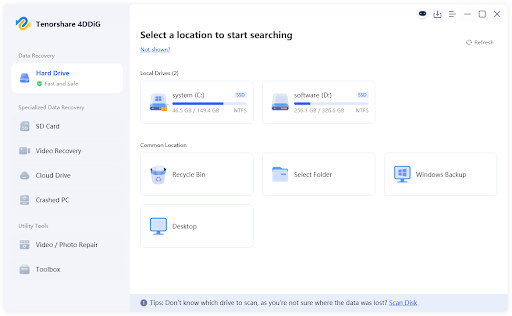
Follow the instructions beneath to use this tool to retrieve data from an internal/external SSD not showing up on your computer:
Step 1: Run the tool on your computer. When the SSD has been identified, select a place in the drive where you would wish to have data extraction.
Step 2: You can pause or stop the scan once you find your desired file types. Examine them or input filters to find exact matches.
Step 3: Hit “Recover” to move the reclaimed files to another place other than the SSD drive on your computer or cloud drive.

Proven Methods to Fix SSD Drive Not Showing up Issue
You’ll have to know whether your SSD is not showing up in Disk Management or File Explorer. This is because each case requires different solutions. Here we’ve shared 8 solutions in total, 4 for each case. Have a look at them:
Case 1: SSD Not Showing up in File Explorer
When your old or new SSD is not showing up in File Explorer but appears in Disk Management, it could be because of a connection or file system issue. It could also be because of a disk that’s not initialized or due to a drive letter conflict. So, here’s how you can fix these issues:
Option A: Check SSD Connection and Port
First, ascertain that the SSD drive is well connected to the port of your computer. In the case of SATA SSD, guarantee that you have both the power cable and the data cable well connected to the power supply and the motherboard. Just in case you are not sure, you can unplug and plug them in again.
For NVMe SSDs, ascertain it’s installed in a compatible slot, as most slots support different sizes, but older ones may run slower. In the case that the SSD drive is still not showing up, switch the port, or in the case of a SATA drive, get another cable to check the connection.
Option B: Initialize the new SSD
Your disk might not be initialized yet. That’s one of the reasons your new SSD is not showing up in File Explorer. So, here’s what you can do:
Step 1: Right-click the “Windows” icon on the desktop. Then, choose “Disk Management.”
Step 2: Pick the non-initialized SSD. It will display a black bar and a small red icon next to its name.
Step 3: Right-click the SSD. Tap “Initialize Disk.” Pick a partition style (GPT is usually best). Hit “OK.”

Step 4: Right-click the unallocated space on the SSD. Select “New Simple Volume.” Follow the steps to set up the disk.
Option C: Assign or Change the Drive Letter
In case your old or new SSD is not showing up in File Explorer, it could be because it doesn’t have a drive letter. Or it might be the disk letter conflicting with another drive’s letter. So, you can assign or replace the drive letter of your SSD in Disk Management:
Step 1: Right-click the “Windows” icon on the desktop. Then, choose “Disk Management.”
Step 2: Right-click the SSD. Next, hit “Change Drive Letter and Paths.”

Step 3: Select “Change” to replace the letter. Or tap “Add” to assign a new one. Pick a letter. Hit “OK.”
Option: D: Format the Drive
The SSD not showing up on Windows 11/10 File Explorer but appearing in Disk Management could be because of a corrupted or incompatible file system. Thus, you can format the disk. To do so:
Step 1: Right-click the “Windows Start” icon. Then, choose “Disk Management.”
Step 2: Right-click the SSD. Tap “Format.” Choose the file system and allocation size. Then, untick the “Quick Format” box. Hit “OK.”
Case 2: SSD Not Showing up in Disk Management
When your SSD is not showing up in Disk Management, it may be due to BIOS configurations, a corrupt or outdated disk driver, or a hardware problem. The following are the ways of solving these problems:
Option E: Check Your BIOS Settings
Your computer’s BIOS settings could be set in a way that does not recognize new SSDs. This could be the reason as to why SSD is not showing up on Windows 11/10. Thus, examine the BIOS settings and activate them for your SSD drive. To do so:
Step 1: Shut down your computer. Reboot it. Then, press “F2” or “Del” to enter “BIOS/UEFI.”
Step 2: Locate the section labeled as the “Storage Configuration” (check the corresponding manual in case you have to).
Step 3: On SATA SSDs, the AHCI option should be picked. In case the internal/external SSD is not showing up in Disk Management, select either “IDE” or “Compatibility” mode.
Step 4: On earlier motherboards, certain SATA ports should be manually enabled in the BIOS.
Option F: Update or Reinstall Disk Drivers
The driver of your SSD could be corrupt or outdated, and this could be the reason why the SSD is not showing up in Disk Management. Therefore, you may update or reinstall the driver. That can be done as follows:
Step 1: Right-click the “Windows” icon on the desktop. Then, choose “Device Manager.”
Step 2: Extend “Disk drives.” Right-click the driver of your SSD. Then, hit “Update driver.”

Step 3: Install the SSD driver automatically. If that doesn’t solve the issue, you can reinstall the SSD driver.
Option G: Execute Hardware and Device Troubleshooter
Your SSD might have a hidden issue that you can’t resolve, resulting in the internal/external SSD not showing up in Disk Management. So, employ the Windows-embedded “Hardware and Devices Troubleshooter.” It can reset SSD settings to default and automatically find and repair problems with the drive or its connection:
Step 1: Press and hold the “Win + X” keys. Then, select and execute “Windows PowerShell (Admin).”
Step 2: Input “msdt.exe -id DeviceDiagnostic.” Hit “Enter” afterward.
Step 3: The “Hardware and Devices” window will pop open. Tap “Next” and follow the on-screen instructions.

Option H: Try the SSD on Another PC or System
If all else fails and your SSD still doesn’t appear on your computer, there might be an issue with your computer or the Windows system. So, take out/unplug the SSD and connect it to another computer.
Conclusion
If you were wondering, “Why is my SSD not showing up on Windows?” before, the cause depended on bad connections, missing drivers, or setup problems. However, we’ve shared clear solutions to fix each situation where your SSD drive is not showing up, like in File Explorer or Disk Management.
But before you apply any solution, especially ones that might erase data, it’s smart to recover your files first. A tool like 4DDiG Data Recovery can help you get back data from undetected/inaccessible SSDs with high success.


