

‘My iPhone is stuck on Verifying Updates when updating to iOS 26. The iPhone won’t move past that “Verifying Update” message, and the screen says verifying update with a little circle going around and around. ’-iPhone X user reported.
Are you excited to install the latest iOS 26 but staring at the verification screen for hours? If your phone is stuck in the “Verifying Update” screen, don’t worry, it can be fixed. In this article, we’ll explore all the possible causes and walk you through the 9 best solutions to finally get your update going without a hitch.


How Long Should the Verifying Update Take for iOS 26 Beta?
The Verifying Update process on iOS 26 beta typically takes between 10 to 30 minutes, depending on your device model and internet speed.
Why Is My iPhone Stuck on Verifying Update?
The “iPhone stuck on Verifying Update” screen appears after iOS 26 has downloaded the update and begins checking the file before installation. If this process gets stuck, it may be caused by a weak internet connection, insufficient storage space, Apple server overload, or beta version glitches.
How to Fix an iPhone Stuck on Verifying Update in 9 Ways?
Is your iPhone stuck on Verifying Update iOS 26, or is iOS 26 stuck on the Verifying Update screen? Don’t panic—before you go digging into more advanced solutions, sometimes the simplest fix does the trick.
| Fix iPhone Stuck Solutions | Difficulty | Data Loss | Success Rate |
| 1. Wait a Few Minutes | Easy, just need time | No | 50% |
| 2. Force Restart iPhone | Easy, clears minor glitches | No | 60% |
| 3. Use ReiBoot iOS System | Easy , Fix 150+ iOS Problems | No | 99% |
| 4. Charge Your iPhone | Easy, if battery<50% | No | 50% |
| 5. Delete failed iOS Update | Easy, if the corrupted iOS download | No | 60% |
| 6. Free Up Storage Space | Easy, if storage < 1GB | No | 60% |
| 7. Update via iTunes/Finder | Need a PC | Yes | 70% |
| 8. DFU mode | Difficult to use | Yes | 80% |
| 9. Apple support | Fix all bugs, but expensive | Yes | 90% |
Solution 1: Wait a Little Longer (5–10 Minutes)
Sometimes, verifying takes longer than expected, especially during new iOS download peak times. Give it at least 10 minutes before assuming it’s stuck.
Solution 2. Force Restart Your iPhone
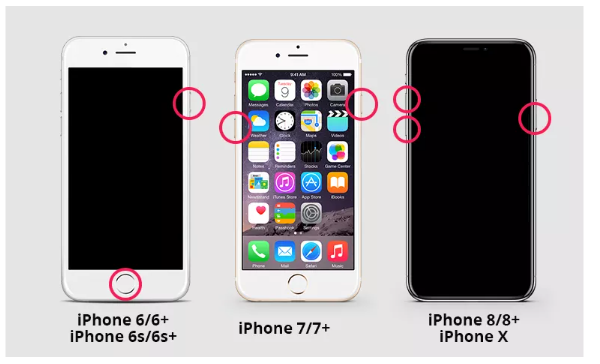
If your iPhone still keeps getting stuck on the Verifying Update screen, a quick restart or force restart can resolve the stuck bugs, especially when getting stuck on the loading bar, update screen, or iPhone update stuck on preparing update.
For iPhone 8/X/XR/11/12/13/14/15/16 Force Restart :
Quickly press and release the Volume Up button.
- Quickly press and release the Volume Down button.
- Press and hold the Side button until you see the Apple logo on the screen.
- Release the button and wait for the device to boot up.
For iPhone 7/7 Plus Force Restart:
Hold Volume Down + Side button until the Apple logo shows.
For iPhone 6s and earlier, to Force Restart:
Hold the Home and Power buttons until restart.

Solution 3: Fix iPhone Stuck on Verifying Update Without Losing Data—Use ReiBoot iOS System
You had tried the Force Restart, but it did not help at all. The best way to recall your iPhone from the Verifying Update page or update iOS 26 is stuck on Verifying Update, is to use Tenorshare ReiBoot, which is considered the safest and most efficient solution. It is a professional iOS repair tool that supports the latest version of iOS 26/18 too.
Tenorshare ReiBoot is designed to handle over 150+ iOS-related problems, including update failures, frozen screens, black screens, and iPhones stuck on the Apple logo. It also supports iOS system updates and downgrades, making it ideal for tackling beta-related glitches.
Here’s how to fix iOS 26 Verifying update issues without losing any data using Tenorshare ReiBoot:
Step 1: Install Tenorshare ReiBoot on your computer and launch it. Connect your iPhone to the computer using a USB cable, then click on the ‘Start Standard Repair’ option.

Step 2: Once your device is detected, choose the Standard Repair option and click the Standard button again to continue.

Step 3: Click on Initiate Standard Repair to begin the repair process.
Step 4: Wait until the progress bar finishes. When it shows Done, your iPhone will restart automatically.

Solution 4: Check and Release iPhone Storage Space
If your iPhone doesn’t have enough available storage, the iPhone update iOS 26 may fail to install properly. However, freeing up your storage may also help your iPhone out of the Verifying Update screen. Follow these steps to check and release storage:
Step 1: Go to Settings > General > iPhone Storage
Step 2: Free Up Space
- Delete unused apps
- Clear browser cache and history
- Remove large files, old messages, and media
- Offload apps you don’t use often

Solution 5: Delete the Ongoing Update and Connect to Another Stable Network—Ensure a Strong Wi-Fi Connection
If your iPhone is stuck on the install screen during the iOS 26 update for a long time, sometimes the quick way to fix it is to delete the incomplete update file and download it again fresh. This can clear any corrupted files causing the issue.
Here’s how to delete the ongoing update and try again:
Step 1: Open Settings > General > iPhone Storage.
Step 2: Scroll down and find the iOS update file (it will usually be named something like “iOS 26 Update”). Tap on it, then choose Delete Update.
Step 3: After deleting, go back to Settings > General > Software Update.
Now, try downloading and installing the update again.

Solution 6: Delete the Old Update File and Then Reinstall the iOS 26 Beta
Sometimes your iPhone gets stuck on the “Verifying Update” screen because the previous update file has become corrupted. This corrupted file can block the installation of the new update, causing the iPhone to be stuck on the Verifying Update iOS 26 issue.
To fix this, you need to delete the old update file from your device and then reinstall the iOS 26 beta update fresh.
How to Delete the Old Update File and Reinstall iOS 26 Beta:
Step 1: Go to Settings > General > iPhone Storage.
Step 2: Scroll through the list and locate the iOS 26 update file (or iOS 18 if still on that version).
Step 3: Tap on the update file, then select Delete Update to remove it from your iPhone.
Step 4: After deleting the corrupted file, go back to Settings > General > Software Update and start downloading and installing the iOS 26 beta update again.

Solution 7: Try updating via iTunes/Finder to fix iOS 26 Stuck on Verifying Update
If your iPhone is stuck on preparing the iOS 26 update and the over-the-air update isn’t working, and you don’t want to use a third-party solution, iTunes or Finder are also good options. But it will have a risk of erasing your data; remember to back up your data before operating it.
How to Update Your iPhone via iTunes or Finder:
Step 1: Use a compatible USB cable to connect your iPhone or iPad to your Mac or PC.
Step 2: Open iTunes on Windows or macOS Mojave and earlier. On macOS Catalina and later, open Finder and select your device from the sidebar.

Step 3: Select your device and click ‘Update.’ Then your iOS version will be updated .
Solution 8: Use DFU Mode to Fix iOS 26 Stuck on Verifying Update
If all methods are not working and your iPhone is still stuck on the Apple logo or frozen during the iOS 26 update, entering DFU Mode (Device Firmware Update) can be a powerful last-resort fix. DFU mode allows your iPhone to communicate with iTunes or Finder without loading the iOS operating system or boot loader. This deep restore mode can resolve serious software issues that normal recovery mode or a restart can’t fix.
Step 1. Connect your device: Use a USB or USB-C cable to connect your iPhone, iPad, or iPod touch to your computer.
Step 2. Open iTunes: Launch iTunes on your Mac (if you have macOS Mojave or earlier) or on your Windows PC.
Step 3. Choose “Update and Update” when prompted. And update your iPhone.
Solution 9: Contact the Apple Support Team
If you’ve tried everything and your iPhone is still stuck on the iOS 26 Verifying Update, it’s a good idea to get in touch with Apple Support. Sometimes, the problem needs a bit of expert attention that only they can provide.
Tips for Fixing iPhone Stuck on Verifying Update after iOS 26 download
- Back up your iPhone using iCloud or iTunes to keep your photos, contacts, and important data safe.
- Ensure 5–6GB of storage. Space is available because iOS 26 updates need enough free space to download and install properly.
Conclusion
If your iPhone is stuck on iOS preparing for an update, basic fixes like restarting your phone or freeing up space often help, but not always. When the iOS 26 update is stuck and nothing else works, a tool like Tenorshare ReiBoot can save the day without data loss. It’s simple, safe, and doesn’t wipe your data.
Whether you’re stuck on Verifying Update iOS 26 or facing other update bugs, ReiBoot is a reliable fix that gets your device back on track in minutes.