

Imagine purchasing a second-hand iPhone 17, excited to set it up as your own, only to be greeted by an “iPhone Locked to Owner” screen. This is Activation Lock, a powerful security feature by Apple to prevent anyone else from using your iPhone, iPad, or iPod touch if it’s lost or stolen.
While this feature is excellent for security, it can become a major headache if you buy a second-hand device that wasn’t properly erased or if you forget your own Apple account credentials. In this guide, we’ll walk you through everything you need to know about iPhone locked to owner removal.
What Should I Do If My iPhone Says Locked to Owner?
When you see the “iPhone Locked to Owner” screen, don’t panic. Your next steps depend entirely on whether this is your own device or once you purchased from someone else.
If This Is Your Own iPhone:
- Find your Apple ID or reset your password: Your Apple account is usually the email address you use with Apple devices. If you own a Mac, you can find the email address from the Apple menu. You can also check your inbox for emails from Apple. The Apple account email address might be included in the body of the email. Things would be much simpler if you just forgot your Apple ID password. There are several ways to reset your Apple account password, and you can easily do it on your own.
- Unlock with passcode: If you have enabled two-factor authentication on your Apple account and you still remember the screen passcode, you can bypass iPhone locked to owner with it.
If You Got a Used or Second-hand iPhone:
Your first and best step is to contact the previous owner immediately. If you can’t reach to the previous owner, there are still other solutions – contacting Apple support or using UnlockGo iPhone Unlocker.
iPhone Locked to Owner, How to Unlock Without Computer?
Before we dive into these methods, it’s important to set realistic expectations. You might have heard about iCloud bypass with DNS. This method only works on very old iOS versions like iOS 8 – 10. iPhone locked to owner screen appears on a device with iOS 15 or later. Therefore, DNS method can’t unlock iPhone locked to owner.
If you need to unlock iPhone locked to owner without computer, here’s what to do.
Option 1. Contact the Previous Owner
If you can contact the previous owner, then it becomes very easy to get rid of iPhone locked to owner screen. The only thing the previous owner has to do is to remove the device from their iCloud account, and the device will be unlocked.
So, contact the previous owner and tell them to follow these instructions to remove the activation lock:
- Visit http://icloud.com/find and sign in with the Apple account.
- A list of all the devices will be shown on the screen.
- From the list, select the locked iPhone and choose the “Erase the device” option.
- Now, choose the “Remove this device” option.
The activation lock will be instantly removed from the device with these steps. After that, you don’t need to enter the Apple account credentials when you set up the device.
Option 2. Unlock with Screen Passcode
Another way is via the screen passcode. If you take a closer look at the screen of a locked iPhone, you will notice there’s an option to unlock with a passcode.
Here’s a list of easy steps:
- Choose the “Unlock with Passcode” option from the screen.
- Now, enter the screen passcode.
- As soon as you enter the correct passcode, the iPhone will be unlocked.
Option 3. Contact Apple Support
If you can’t unlock your iPhone and you are out of options, then you should also try contacting Apple Support. Not many people know this, but Apple’s customer support can help you regain access to your device.
As long as you can provide proper proof of purchase documentation, Apple’s support will help you regain access. Here’s a list of steps on how to contact Apple support and unlock your iPhone:
- Visit Apple’s support page.
- Start a new Activation Lock support request.
- Enter the IMEI, email address, and move to the next step.
- Provide all the information asked by Apple’s support team.
- Apple will send you an email telling you if they can unlock the device or not.
It is worth noting that Apple will refuse your request if you fail to provide valid proof of purchase. Also, the process can take a few days or even more if it is the weekend or a holiday.
iPhone Locked to Owner, How to Unlock with Computer?
We have discussed multiple ways to unlock the iPhone locked to owner in the above section. But all of these methods have a low success rate. Is there any working method to unlock iPhone locked to owner effectively and easily? OF COURSE!
I would like to recommend iToolab UnlockGo, a multifunctional iPhone unlocker. Whether you want to remove iCloud activation lock without password or bypass MDM lock, it’s helpful. It turned out to be wonderful, based on my experience.
Why should you try iToolab UnlockGo?
- Unlock iPhone locked to owner on iPhone 5s to iPhone 17, and some iPad/iPod models.
- Support iCloud bypass on iOS 12-26.
- Allow you to remove iPhone locked to owner without jailbreak.
- Easy to use. You can unlock iPhone with a few clicks.
- Based on the advanced technology, it guarantees a high success rate of 99%.
iToolab UnlockGo just released a new version to support bypassing iCloud lock on iPhone 17 and iOS 26. Here’s every supported model:
- iPhone 17 / 17 Pro / 17 Pro Max,
- iPhone Air,
- iPhone 16e, iPhone 16 Pro / 16 Pro Max, iPhone 16 / 16 Plus,
- iPhone 15 Pro / 15 Pro Max, iPhone 15 / 15 Plus,
- iPhone 14 Pro / 14 Pro Max, iPhone 14 / 14 Plus,
- iPhone SE (3rd),
- iPhone 13 Pro / 13 Pro Max, iPhone 13 / 13 Mini,
- iPhone 12 Pro / 12 Pro Max, iPhone 12 / 12 Mini,
- iPhone SE (2nd),
- iPhone 11 Pro / 11 Pro Max, iPhone 11,
- iPhone XR, iPhone XS / XS Max,
- iPhone 5s – iPhone X
- iPad 5th-11th Gen,
- iPad Air / Air 2 / Air (3rd) / Air (4th) / Air (5th) / Air (6th) / Air (7th),
- iPad Mini 2/3/4/5/6/7,
- iPad Pro 9.7-in/10.5-in/12.9-in(1st-7th Gen)
- iPod touch 6, iPod touch 7
Now, it’s time to unlock your locked iPhone with UnlockGo. To get started, visit the official website of UnlockGo. Then free download and install the program on your computer. Once done, follow the simple steps below:
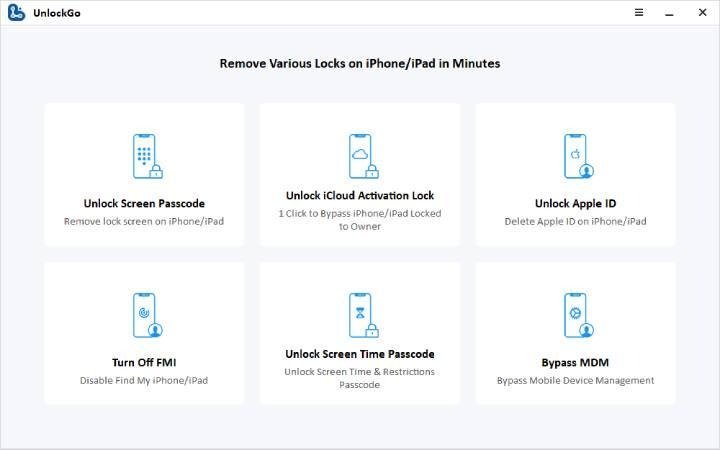
Step 1. Launch UnlockGo on your computer. Then click “Unlock iCloud Activation Lock” on the home interface.

Alt: UnlockGo interface
Step 2. Connect your iCloud-locked iOS device to the computer with a USB cable. And click “Start” to continue.

Alt: connect locked device to the computer
Step 3. All you have to do is wait. UnlockGo will do the remaining job for you. During the removal process, your device will restart automatically several times. It’s normal.

Alt: unlocking iphone locked to owner
Step 4. Several minutes later, your iOS device will be completely and permanently unlocked. Now, you can set it up as your own.

Alt: iphone locked to owner removal successfully
Conclusion
It is extremely common for users to face the iPhone locked to owner issue. It normally shows up on used and second-hand iOS devices, but many first owners can also face it if they have forgotten their Apple ID/password.
This guide includes multiple ways to solve the iPhone locked to owner issue with and without a computer. If you don’t have a computer, then you can contact the previous owner or use the screen passcode. Another option is to contact the customer support and provide them with proof of documentation.
But, if you want a tested and fast way to remove the activation lock without previous owner, then use iToolab UnlockGo. It is a very lightweight tool that allows you to use a PC to unlock your iPhone in just a few minutes!