


Your guide: How to Connect Projector to Macbook?
Whether you’re presenting, viewing a movie, or just copying the display of your Macbook, connecting it to a projector can change everything. The process could appear intimidating, though, particularly for anyone not accustomed to Apple’s ecosystem’s nuances. Let’s be honest, it can be a total nightmare and something you shouldn’t be left for the day of a presentation.
So, if you’ve ever wondered, How to Connect a Projector to a MacBook?” you’re in luck. Today, we’ll cover this and more. Keep reading to learn more.
Also read: US Responds to NATO Country Turkey’s BRICS Application
Identifying Your MacBook’s Display Preferences
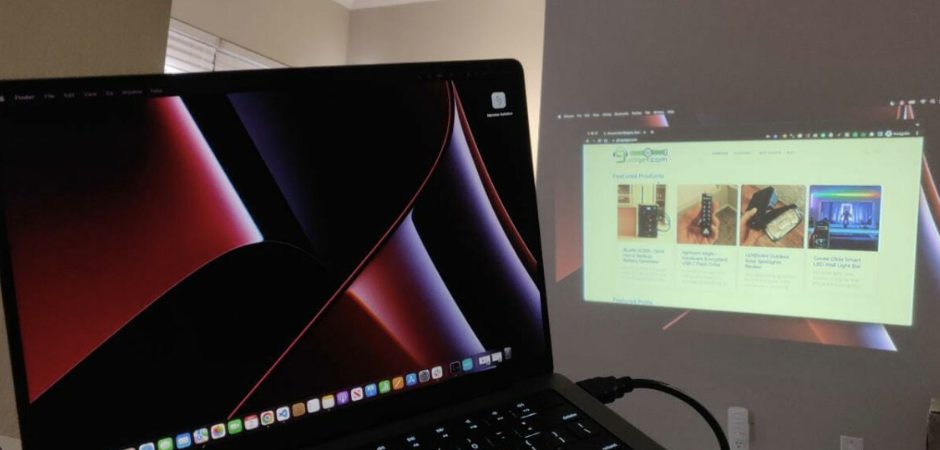
Familiarize yourself with your MacBook’s display choices before we get into the connection process. Go to the “System Preferences” menu and under “Displays,” click. The “Arrangement” tab here lets you control how your Macbook interacts with outside displays, like a projector.
How to Connect Projector to Macbook?
The type of connectors available on both devices will affect the real procedure of connecting your Macbook to a projector. Let’s investigate the several possibilities:
Using an HDMI Connection
Many contemporary projectors and Macbooks have HDMI connectors, which streamlines the connecting process. Usually found on the side or back of your Macbook, find the HDMI port there and then connect it to your projector with an HDMI cable.
Utilizing USB-C/Thunderbolt Ports
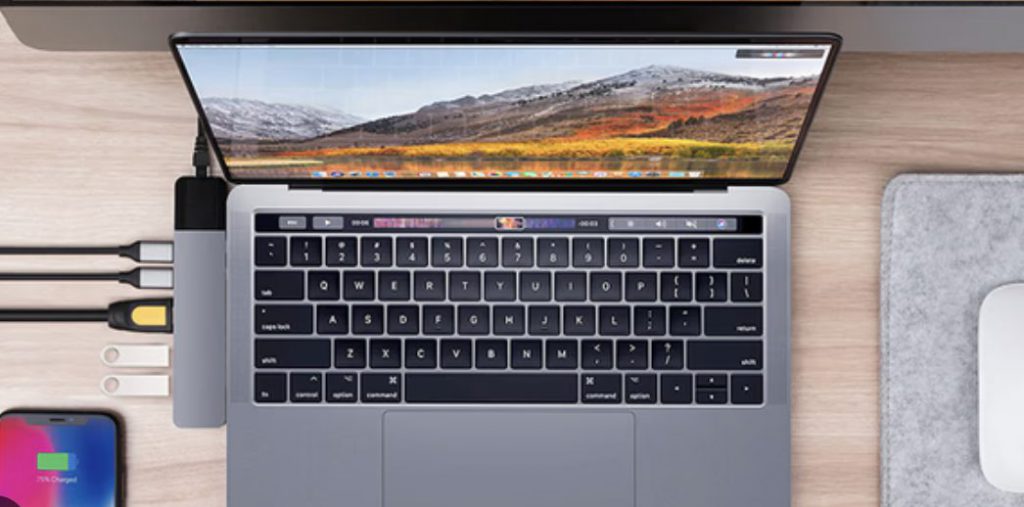
Older Macbook models can have USB-C or Thunderbolt connections in place of standard HDMI. Depending on the port layout of your Macbook, you will in this scenario need a USB-C to HDMI adapter or a Thunderbolt to HDMI adapter. Connect the HDMI cable from the adapter to the projector after plugging it into the USB-C or Thunderbolt port of your Macbook.
Also read: BRICS: United States Admits Sanctions Are Crushing The Dollar
Apple TV
Use an Apple TV device to wirelessly link your Macbook to your projector if your projector supports Apple’s AirPlay technology. Just make sure your Macbook and the Apple TV are hooked to the same Wi-Fi network, then use the AirPlay function to replicate the display on the projector.
Also read: BRICS: United States Admits Sanctions Are Crushing The Dollar
Display Setting Configuration
Configuring the display settings comes first once your Macbook is physically connected to the projector. Returning to the “Displays” part of your System Preferences, search for the “Arrangement” tab. You may decide here how you wish the MacBook’s display to interact with the projector—mirroring the displays or spreading the desktop over both screens.
Troubleshooting Common Issues
Although Macbook connecting to a projector is usually easy, you could run across some typical problems. Try hand-selecting the projector as an external display in the “Displays” settings if your Macbook does not automatically identify the projector. Make sure your projector is turned on and set to the right input as well as that your HDMI or adapter connections are firmly connected.
Sharing Presentations and Content
Your Macbook is now effectively connected to the projector, so you may begin easily sharing your presentations and material. Whether your presentation is professional, movie streaming, or showcasing your most recent work, the big screen
Enhancing Collaboration with Wireless Connectivity
Should your projector enable wireless connectivity, your teamwork will be elevated. Multiple users can quickly share their screens and collaborate effortlessly by employing a wireless connection, therefore relieving the inconvenience of actual cords.
Maintaining Compatibility and Future-Proofing
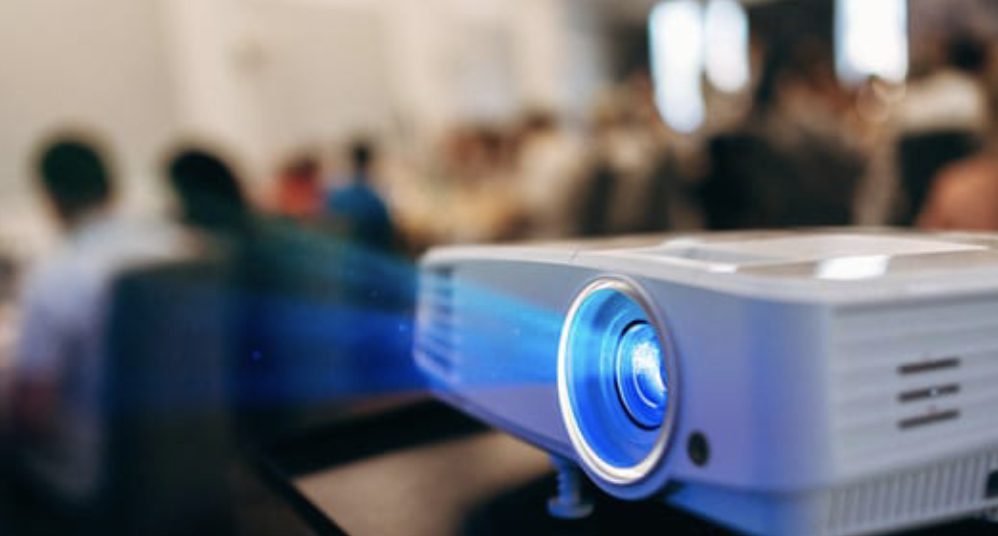
It’s important to take long-term compatibility of your Macbook and projector configuration into account as technology develops. Learn the most recent HDMI and USB-C standards, then make sure your devices have the required ports and adapters to future-proof your connection.
Conclusion
From amazing presentations to immersive movie evenings, connecting your Macbook to a projector may provide a universe of possibilities. Following the advice in this article will help you to create a flawless connection and release the full capability of your Macbook-projector configuration. Recall that a little bit of planning and troubleshooting will help you to boldly present your work and improve the viewing experience for your audience.
Happy presenting!